Combining Guest Records
The Combine Guest Records menu allows users to combine selected field values from of two or more guest records into one. When multiple records are available for the same guest, this option allows properties to merge the details captured in those records into one and delete the duplicated records.
Breakpoint: 65085 - Combine Guest Records (Front Office - Manager)
Perform the following steps to combine the guest records.
Navigate to Settings à Utilities à Combine Guest Records.
Enter the values in one or more of the following fields to search for a guest record:
-
Last Name
-
First Name
-
Company
-
Postal Code
-
Patron ID
Click Search.
Click the Select Fields to Filter button and select the flags based on which the guest records must be filtered.
Select a guest record from the results.
Click Combine Guests. The grid in the Combine Member screen displays the guest records apart from the one selected in the Combine Guest Records screen.
To search for guest records with new search criteria disable the Use Target Search Criteria flag and search using the Last Name, First Name, Company, and Postal Code fields.
Select one or more guest records from the results.
Enable the Show Match Field to view the fields that have the common values in the selected guest records.
Click Next.
Select the preferred value for fields in the Field Values section. The fields display the values captured in the selected guest records.
Enable the Default to Primary Guest Value flag to change the selections back to the values captured on the primary guest record. This flag is enabled by default.
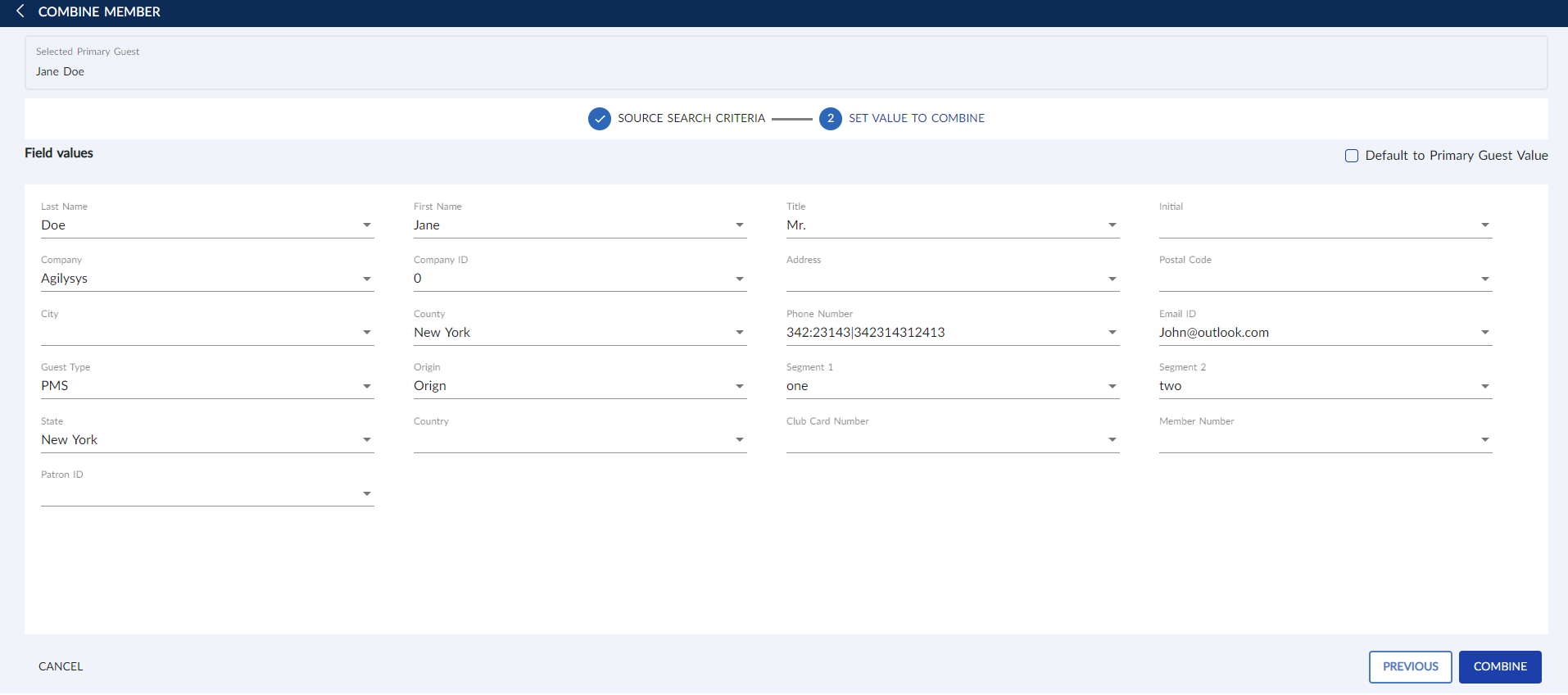
Click Combine.
Click Yes in the Info box that appears. Clicking Yes transfers all postings, folios, reservations, messages etc. to the primary guest selected.